You can sign up and get started quickly and easily. For your first time using the app, we recommend getting your account connected and using one or two campaigns and their keywords as a test bed as you get a feel for the app. Your other campaigns will be untouched, so you can run AdPartner Suite in parallel with other tools, just make sure they aren’t conflicting. For example, if you set up day parting for a campaign with us, make sure you disable day parting features in your other tooling, so there aren’t two systems trying to work on it at the same time.
This page is a work in progress – please report any issues to info@adpartnersuite – thank you!
1. Sign Up!
The signup form will let you create a user account on the app which will get you to the Dashboard. The Trial account is perfect for a no strings attached test period.
2. Login With Amazon!
Once you are logged into the app, it’s time to connect it to your Amazon Advertising account. The initial Dashboard ought to lead you through the steps with a minimum of fuss. You will be prompted by the Amazon login flow to enter your credentials via their secure portal, and then returned to our system, giving us access.
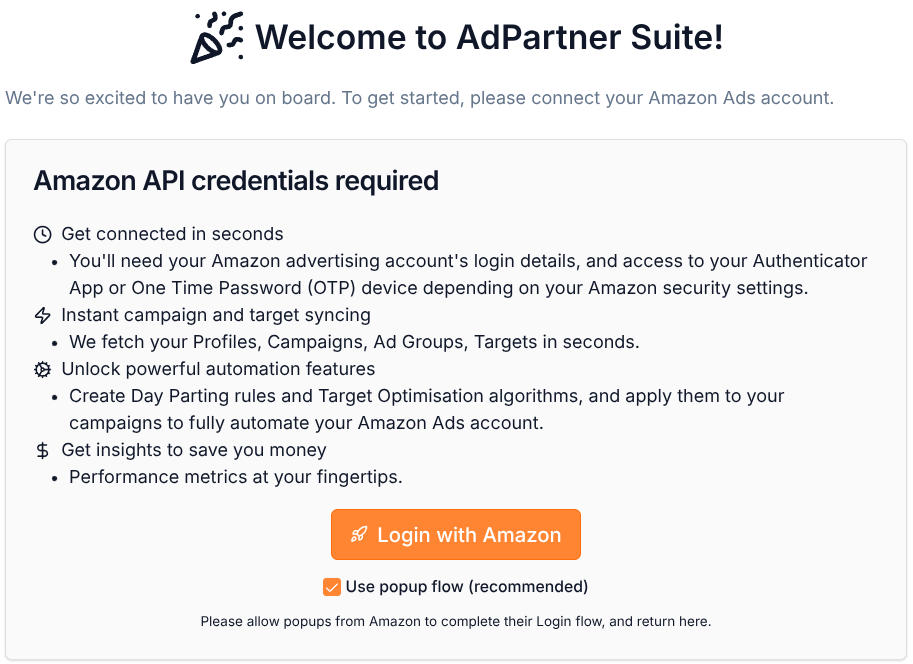
You can revoke this access at any time by going to the Settings page and clicking “Disconnect Amazon Ads Account”. We will make absolutely no changes to your Amazon Ads account until a few steps later in this guide when you associate a Day Parting rule or PPC Algorithm with a campaign, so don’t worry, your data is safe!
3. Sync will complete in the background
By the time you finish reading this, the account synchronisation process will probably have finished, but while that’s happening you can jump ahead and create a Day Parting rule. What’s going on during this process is:
- Information about your Ad Profiles, Campaigns, Ad Groups, Targets and so on are read from Amazon Ads and stored in our database. This allows our app to analyze and process thousands of campaigns and millions of targets and keywords extremely quickly, without needing to reach out to Amazon Ads each time some information is required.
- Amazon Marketing Stream infrastructure is created in AWS (Amazon Web Services) to configure real-time data push from Amazon Ads to our app, one for each Ad Profile. You can read more about this at the AMS Documentation.
- Daily reports are fetched for all Campaigns and Targets in your account, to the maximum data retention range supported by Amazon. This allows us to calculate trends over months worth of data on demand, especially useful in the Algorithm Designer.
4. Create your first Day Parting rule!
Go to the Day Partings menu and click “+ Create Day Parting”. For more information on Day Parting rules see the documentation. Set up a simple On/Off based rule that specifies ‘down’ hours such as midnight to 6am, and 20:00 to midnight, as Off, and the in between hours as On.
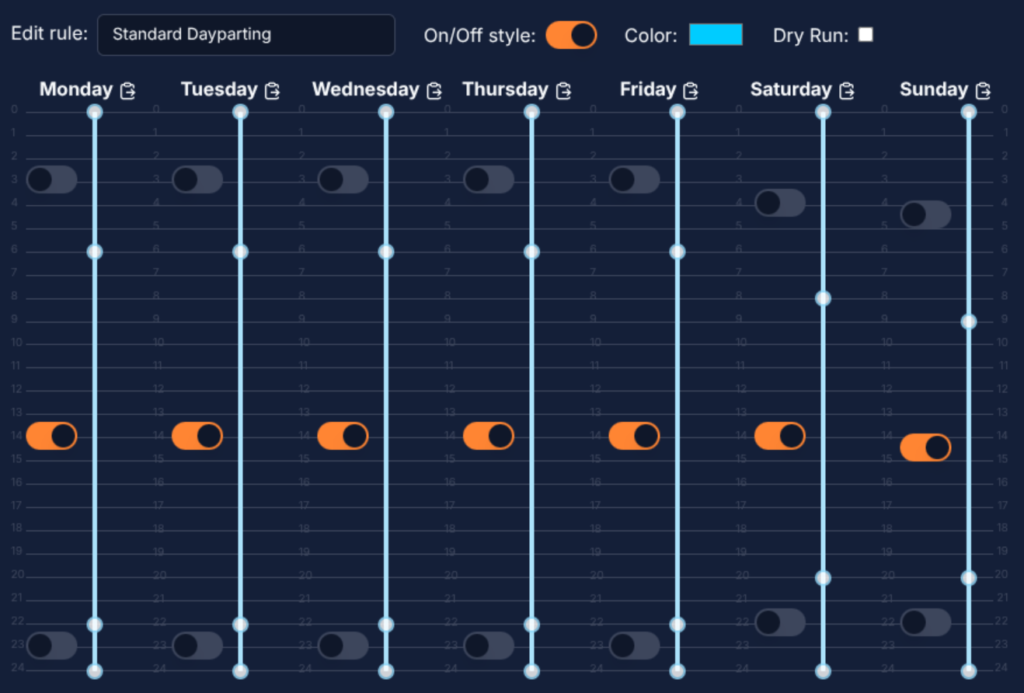
For your first rule, keep the “Dry Run” checkbox ticked. This will ensure that the rule is calculated, but no actual changes are written to your campaigns until you turn off Dry Run mode for the rule. Click Save to save your rule before moving on.
5. Assign the Day Parting rule to a campaign
After Saving the rule, head over to the Campaigns dashboard and find your campaign using the search/filter tools. Scrolling right in the Campaigns table will reveal the “Assigned Day Parting Rules” column, where you can click the “+” button to assign a rule to the campaigns. Alternatively, you can select many campaigns using the checkboxes in the first column (or Select All with the checkbox at the top of the column) and then use the Bulk Actions menu to assign a Day Parting rule to all selected campaigns.
The rule’s activity will appear on the Reports page, and if you want to see some immediate results you can tick the “Run now” checkbox when assigning the rule to the campaign, or the “Run Now” button next to the Day Parting rule indicator in the Campaigns table, to see what it would do.
6. Your First PPC Optimisation Algorithm
Algorithms are very easy to set up. Go into the Automation->Algorithm Designer page, and click “+ New Algorithm”. Give it an appropriate name, and select one of the available templates, before hitting OK. Right click to open a context menu where you can add nodes to the graph, and drag from the output of one node to the input of another to connect your algorithm graph nodes together. For a more detailed walk through see the full Algorithm Designer documentation.
You can Test Run your algorithm at any time, either using the predefined sample metrics that are always available on the left, or by searching for one of your own Keywords or Targets to load its current metrics to see how the algorithm would behave if run on that target right now. For safety, you should leave a new algorithm in “Pending Review” mode, so that when it is run any decisions it reaches are simply recorded as suggested changes, and can be reviewed before any changes are made to your account, very much like the Dry Run option for Day Parting rules.
Don’t forget to hit Save before you move on from your algorithm, once you’re happy with it.
Just like with Day Parting rules, after you’ve saved an Algorithm in the Designer you then need to associate it with a campaign in the Campaigns screen. When the algorithm is run, it will execute once for every keyword and target in the campaigns it is associated with. Head to the Campaigns screen, and either associate it with one campaign or select several campaigns at once and use the Bulk Actions button to associate it with several Campaigns at once.
When run on a schedule, your algorithm run will complete fully automatically, and if you’ve configured Notifications then you’ll receive an email summarising the Decisions reached.